


In Zaapit for Salesforce, the Master Selection and Master Selection Formula serve as powerful tools that automatically identify the master (or survivor) record whenever duplicate entries are found. This feature streamlines your data management by ensuring the most accurate and relevant record is selected without manual effort.
💡 What It Does
Certainly! Here’s an expanded version of that point:
When multiple records share similar or identical data, Zaapit employs an advanced Master Selection Formula to efficiently manage and consolidate these duplicate entries. This formula analyzes various attributes and criteria within the records – such as creation date, completeness of information, source reliability, frequency of updates, and usage history – to determine which record is the most accurate, comprehensive, and authoritative. Once evaluated, Zaapit automatically designates this record as the master record that will be retained as the primary source of truth. Meanwhile, the other records, which are identified as duplicates, are flagged accordingly, enabling users to either archive, merge, or delete them as needed. This automated process not only helps maintain data integrity and consistency but also significantly reduces manual effort in managing duplicate data, enhancing overall data quality and operational efficiency.
This ensures consistency, accuracy, and control in your deduplication process.
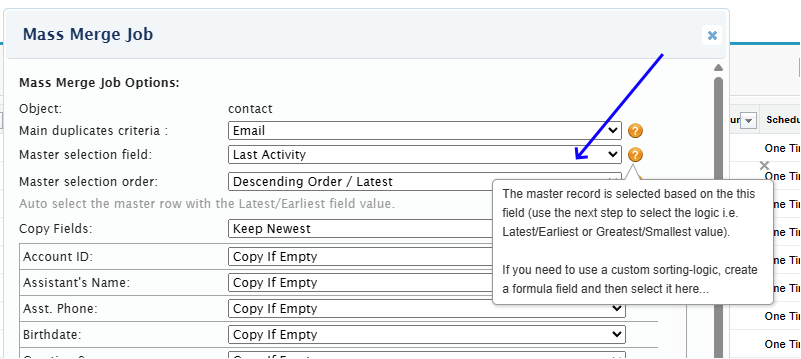
🧭 To create a formula do the following:
🧭 Step 1: Go to Object Manager
- Click the ⚙️ Setup icon (top right corner).
- Select Object Manager.
- Choose the object you want to add the formula to, for example, Opportunity or Custom Object.
🧮 Step 2: Create a New Formula Field
- In the object’s sidebar, click Fields & Relationships.
- Click New.
- Choose Formula as the type, then click Next.
- Enter:
- Field Label (e.g., Expected Close Date)
- Field Name (auto-fills)
- Formula Return Type → select Date/Text/any
- Click Next.
🧠 Step 3: Write the Formula
In the formula editor, enter your logic using Salesforce formula syntax.
Exmaple: IF( IsPrimary__c = TRUE, “Master”, “Duplicate” )
tep 4: Check Syntax and Save
Click Save.
Click Check Syntax to validate your formula.
Click Next, set field-level security as needed (admin only), and no need to add it to your page layouts (it will be used inside the merge job).
You can disblae & clone an existing job to chnage the master selection formula:
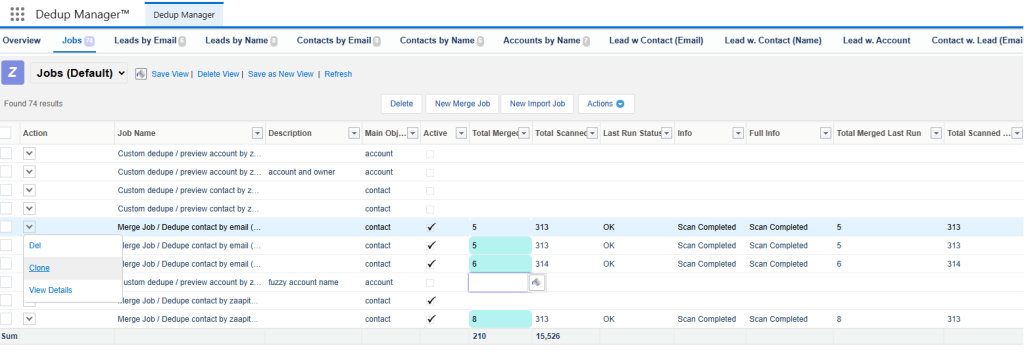
Custom master record selection order
ZaapIT’s Auto Merge engine can use formulas to define a custom master record selection order. This allows you to combine multiple fields and business rules into a single value that determines which record should be selected as the master.
When building a text formula that combines two or more fields, the order of the fields is important because Auto Merge evaluates the resulting value from left to right. The first field has the highest priority, followed by the second field, and so on.
For example, if you want to prioritize Status first and Activity Date second, the formula should place the status value before the date value:
IF(Status__c = "Active", "1", "0") &
TEXT(YEAR(Activity_Date__c)) & "-" &
TEXT(MONTH(Activity_Date__c)) & "-" &
TEXT(DAY(Activity_Date__c))
In this example:
- Status is evaluated first, so Active records are ranked higher than Inactive records.
- Activity Date is used as a secondary criterion to rank records that have the same status.
- The record with the highest resulting value is selected as the master.
The YYYY-MM-DD date format is only required when dates are being converted to text and combined with other fields in a text formula. This format preserves chronological order when values are compared as strings, ensuring that newer dates are ranked correctly. If the date is used as a standalone date field (not converted to text), this formatting is not necessary.
By carefully choosing both the field order and the formatting of each component, you can create powerful master selection rules that accurately reflect your business priorities.