

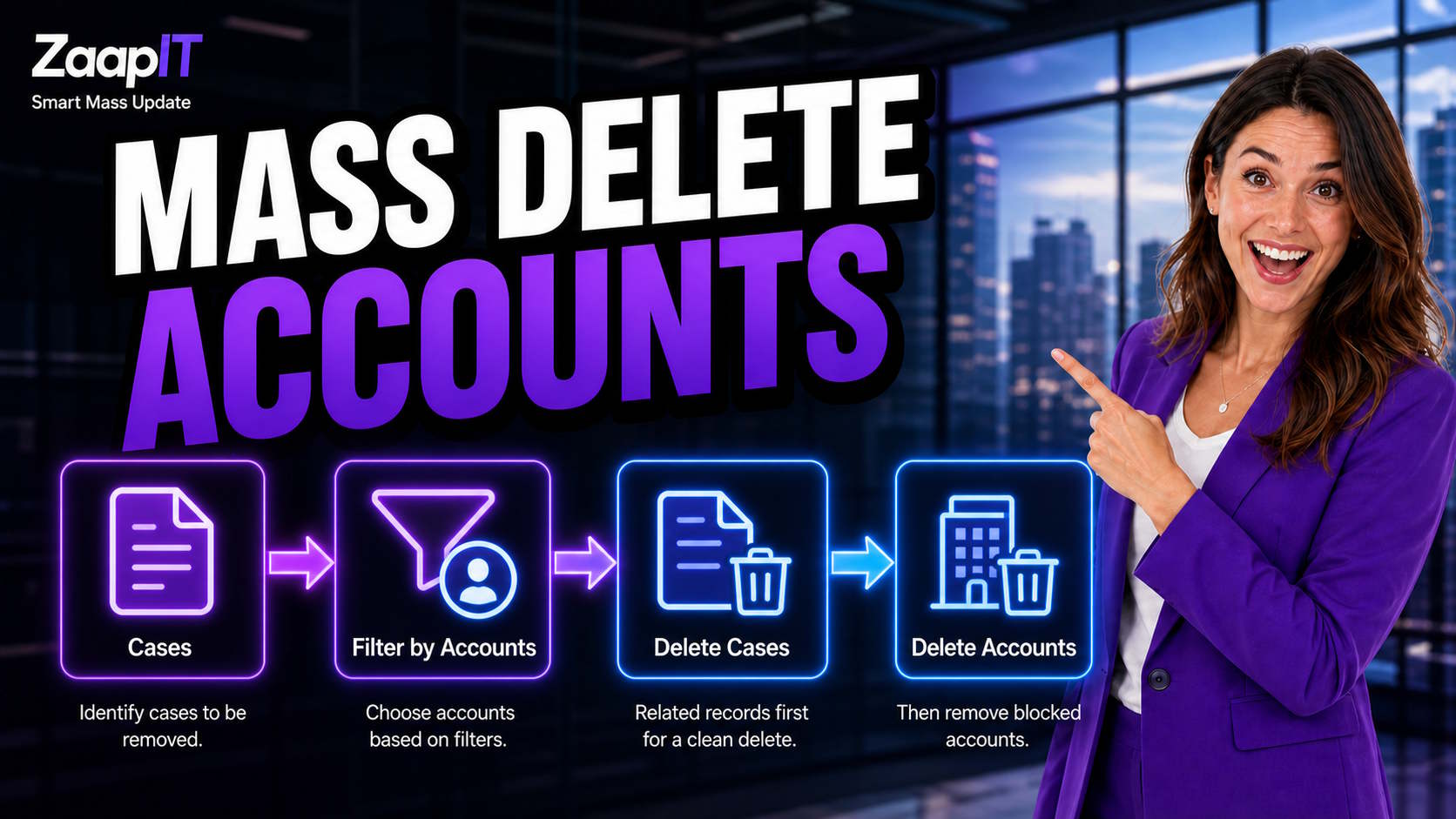
Deleting Accounts in Salesforce is not always straightforward. If an Account has related Case records, Contacts, Opportunities, custom object records, or other dependent records, Salesforce may restrict the deletion.
This usually happens because Salesforce is protecting your data from accidental loss, broken relationships, or orphaned records. However, when you are cleaning test data, removing old Accounts, or performing a controlled Salesforce data cleanup, you may need to delete the related records first.
With ZaapIT Smart Mass Update for Salesforce, you can use Explorer 1 or Explorer 2 to find and bulk delete related Cases or other child records before deleting the Account. ZaapIT provides a powerful mass undelete feature, allowing you to easily recover multiple deleted items and making deletion operations completely safe.
Why Salesforce Prevents Account Deletion
Salesforce may block Account deletion when related records still exist. This depends on your object relationships, lookup settings, master-detail relationships, validation rules, automation, and delete restrictions.
Common related records that may prevent deleting Salesforce Accounts include:
- Cases
- Contacts
- Opportunities
- Contracts
- Assets
- Orders
- Tasks and Events
- Files and Attachments
- Custom object records
For example, if you try to delete an Account with open or related Cases, Salesforce may display an error and stop the deletion. To delete the Account successfully, you first need to remove, reassign, or update the related records that are causing the restriction.
The Problem With Deleting Related Records Manually
Standard Salesforce list views are useful, but they can be limited when you need to delete related records in bulk.
The real challenge is filtering child records, such as Cases, by fields from the related Account.
For example, you may want to delete Cases where the related Account has:
- A specific Account Name
- A certain Billing Country
- A test or duplicate Account Type
- An old Created Date
- A specific Account Owner
- A custom cleanup field
- A known Account ID list
Doing this manually from each Account related list can take a long time. It also increases the risk of missing records.
How ZaapIT Helps Delete Related Salesforce Records in Bulk
ZaapIT for Salesforce gives users a grid-based way to work with Salesforce records in bulk. Using the Explorer 1 or Explorer 2 tabs, you can open the related object, such as Case, and filter those records using fields from the parent Account.
This makes it easier to identify the exact related records blocking Account deletion.
For example, instead of opening Accounts one by one, you can:
- Open Explorer 1 or Explorer 2 in ZaapIT.
- Select the Case object.
- Add Case fields to the grid.
- Add related Account fields to the layout.
- Filter Cases by Account fields.
- Select the matching Case records.
- Delete the Cases in bulk.
- Return to the Account records and delete the Accounts.
Step 1: Open Explorer 1 or Explorer 2
In ZaapIT Smart Mass Update, open either the Explorer 1 or Explorer 2 tab.
These Explorer tabs allow you to configure a Salesforce object grid and work with records in bulk. For this example, choose the Case object because Cases are the related records preventing the Account deletion.
Step 2: Configure the Grid for the Case Object
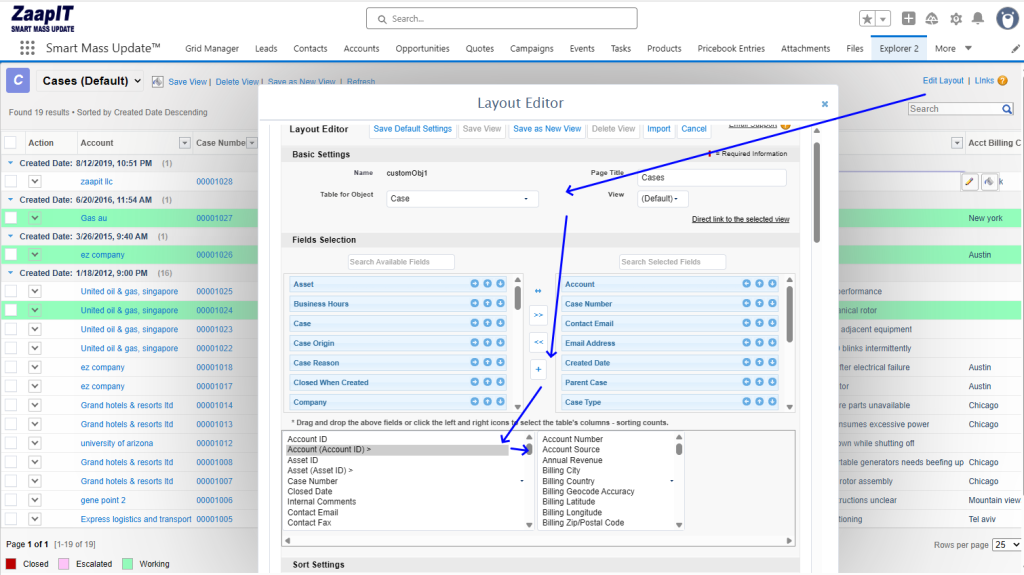
Open the layout editor and set the table object to Case.
Then add the fields you need to review before deletion. Useful Case fields may include:
- Case Number
- Account
- Subject
- Status
- Created Date
- Owner
- Case Type
Next, add related Account fields to the grid. These fields help you filter Cases based on the Accounts you want to delete.
Useful related Account fields may include:
- Account ID
- Account Name
- Account Number
- Billing City
- Billing Country
- Account Owner
- Account Created Date
- Custom Account cleanup fields
This is the key step: by adding related Account fields to the Case grid, you can filter Case records according to Account-level criteria.
Step 3: Filter Cases Using Related Account Fields
After the grid is configured, use ZaapIT filters to narrow the Case records.
For example, you can filter Cases where:
- Account Name contains “test”
- Account Billing Country equals “United States”
- Account Owner equals a specific user
- Account Created Date is before a certain date
- Account ID is included in your cleanup list
- A custom Account field equals “Delete”
This allows you to find all Cases connected to the Accounts you plan to delete.
Step 4: Review and Bulk Delete the Cases
Before deleting anything, carefully review the filtered Case list. Make sure the grid contains only the records that should be removed.
Once confirmed, use ZaapIT’s bulk selection and delete action to delete the related Cases.
After the Cases are deleted, try deleting the Accounts again. If Salesforce still restricts the delete, another related object may also need to be cleaned up.
Step 5: Repeat for Other Related Records
Cases are a common reason Account deletion is blocked, but they are not the only possible reason.
If the Account still cannot be deleted, repeat the same process in ZaapIT Explorer for other related objects, such as:
- Contacts
- Opportunities
- Assets
- Contracts
- Orders
- Custom objects
Open the relevant object in Explorer 1 or Explorer 2, add related Account fields, filter the records, review them, and then delete or update them in bulk.
Best Practices Before Bulk Deleting Salesforce Records
Bulk deleting Salesforce records should always be done carefully. Before deleting related Cases, Accounts, or custom object records, follow these best practices:
- When you use ZaapIT, undo/back files are created and stored under the Smart Mass Update > Files tab. These files enable you to perform a bulk undelete if needed, giving you a quick way to recover deleted data.
- Test the process on a small sample first.
- Use Account IDs when possible for accurate filtering.
- Confirm that the filtered records match your cleanup criteria.
- Check whether records should be reassigned instead of deleted.
- Review automation, flows, and validation rules that may affect deletion.
- Make sure you have the right Salesforce permissions.
- Understand how the Salesforce Recycle Bin works in your org.
Final Thoughts
If Salesforce prevents you from deleting Accounts because related Cases or other records exist, the solution is to clean up the related records first.
With ZaapIT Smart Mass Update for Salesforce, you can use Explorer 1 or Explorer 2 to open the related object, add related Account fields, filter records by Account criteria, and bulk delete the records that are blocking Account deletion.
This gives Salesforce admins and operations teams a faster, cleaner way to handle Account deletion restrictions, especially during data cleanup, duplicate removal, sandbox cleanup, or migration preparation.